How to Cast IPTV to Any TV Using AirPlay, Miracast or HDMI
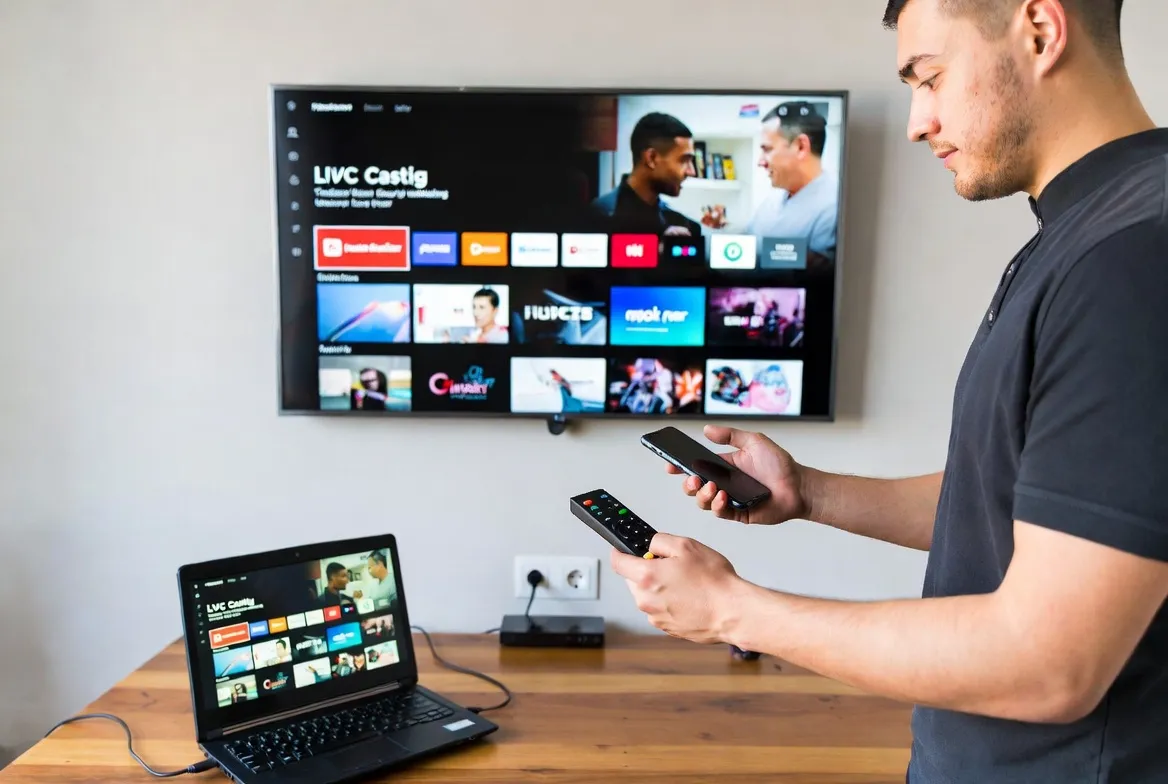
Phone → Big Screen in Seconds
You've got 18,000+ IPTV channels on your phone — but watching on a 6-inch screen isn't exactly the cinema experience you signed up for. The good news? Casting IPTV to your TV takes under 60 seconds with AirPlay, Chromecast, Miracast, or a simple HDMI cable. Whether you're rocking a brand-new Samsung QLED, an older Vizio, or even a decade-old "dumb" TV with an HDMI port, this guide covers every method to get IPTV streaming on the biggest screen in your house.
Quick Answer: Which Casting Method Should I Use?
- iPhone/iPad user? → AirPlay to Apple TV or compatible Smart TV
- Android user? → Chromecast or Miracast screen mirror
- Laptop user? → HDMI cable (zero lag, best quality)
- Want the best experience? → Fire TV Stick or Shield TV (native IPTV app)
Casting Methods Compared at a Glance
| Method | Latency | Max Quality | Cost | Reliability | Best For |
|---|---|---|---|---|---|
| HDMI Cable | 0ms | 4K HDR | $8–15 | ★★★★★ | Laptops, zero-lag sports |
| Chromecast | <0.5s | 4K HDR | $30–50 | ★★★★★ | Android users, hands-free |
| AirPlay | <0.5s | 4K HDR | Free* | ★★★★☆ | iPhone/iPad/Mac users |
| Miracast | 1–2s | 1080p | $15–30 | ★★★☆☆ | Windows laptops, budget |
| Fire TV Stick | 0ms (native) | 4K HDR | $30–50 | ★★★★★ | Dedicated IPTV device |
*AirPlay is free if your TV supports AirPlay 2. Otherwise, Apple TV ($129+) required.
Method 1: AirPlay — Best for Apple Users
Works with: iPhone, iPad, Mac → Apple TV, Samsung (2018+), LG (2019+), Sony, Vizio Smart TVs
Step-by-Step AirPlay Setup
- Connect to same WiFi — ensure your iPhone/iPad and TV are on the same network
- Open IPTV app — launch IPTV Smarters, GSE IPTV, or any compatible player
- Start playing a channel — select your desired channel and hit play
- Tap the AirPlay icon — look for the rectangle with triangle icon in the player controls
- Select your TV — choose your TV from the device list
- Enjoy on the big screen — your phone becomes the remote control
AirPlay Pro Tips
- Use Screen Mirroring (swipe down → Screen Mirror) if the app doesn't have a native AirPlay button
- Enable "Match Content" on Apple TV for automatic frame rate switching during sports
- Keep phone plugged in — AirPlay drains battery faster than normal usage
Method 2: Chromecast / Google Cast — Best for Android
Works with: Android phones/tablets, Chrome browser → Chromecast, Google TV, Android TV, Chromecast-enabled Smart TVs
Step-by-Step Chromecast Setup
- Plug in Chromecast — connect to your TV's HDMI port and power via USB
- Same WiFi network — ensure phone and Chromecast share the same network
- Open IPTV app — IPTV Smarters and many apps have a built-in Cast button
- Tap the Cast icon — the rectangular icon with WiFi waves in the corner
- Select your Chromecast — pick your device from the popup list
- Stream on TV — phone controls the stream; you can lock your screen or use other apps
Pro Move: Cast from Chrome Browser
If your IPTV provider offers a web player, open it in Chrome on your laptop. Click the three-dot menu → Cast → select your Chromecast. This bypasses mobile app limitations and delivers full-screen HD quality without draining your phone battery.
Method 3: Miracast — Wireless Screen Mirror for Windows & Android
Works with: Windows 10/11 laptops, most Android phones → Miracast-compatible Smart TVs, Amazon Fire TV, Roku
From Windows Laptop
- Press Win + K to open the wireless display menu
- Select your Smart TV or Miracast adapter from the list
- Choose "Duplicate" or "Second screen only"
- Open your IPTV app or web player — it mirrors to the TV
From Android Phone
- Swipe down notification shade → tap "Smart View", "Cast", or "Screen Mirror"
- Select your TV from available devices
- Accept connection on your TV if prompted
- Open IPTV app and play — entire screen mirrors to TV
Miracast Limitations
- Higher latency — 1-2 second delay makes live sports slightly behind
- Max 1080p — doesn't support 4K mirroring on most devices
- Phone screen stays on — drains battery and you can't use other apps
Method 4: HDMI Cable — The Reliable Classic
Works with: Any laptop, tablet, or phone with HDMI/USB-C output → Any TV with HDMI input (including old "dumb" TVs)
Why HDMI Is Still King
Zero Latency
No WiFi dependency means zero buffering, zero delay. Perfect for live sports where every second matters.
4K HDR Support
HDMI 2.1 cables support 4K@120fps, Dolby Vision, and Dolby Atmos pass-through.
No WiFi Needed
Works even with slow internet since the heavy lifting is on your source device, not the network.
Universal Compatibility
USB-C to HDMI adapters work with iPhones (Lightning adapter), Android phones, laptops, and tablets.
What Cable Do I Need?
- Laptop with HDMI port: Standard HDMI cable ($8–15)
- USB-C laptop/tablet: USB-C to HDMI cable or adapter ($12–20)
- iPhone/iPad: Lightning Digital AV Adapter ($29) or USB-C to HDMI for newer iPads
- Android phone: USB-C to HDMI adapter ($12–15) — check phone supports video output
Bonus: The Best Method Is No Casting at All
While casting works great, the smoothest IPTV experience comes from installing the app directly on your TV device:
- Amazon Fire TV Stick 4K ($35) — install TiviMate directly, no phone needed
- Nvidia Shield TV ($150) — best quality, AI upscaling, native IPTV apps
- Android TV / Google TV — Smart TVs with built-in app stores
- Android box ($40) — turns any TV into a smart IPTV machine
These devices eliminate the need for casting entirely — faster channel switching, better picture quality, and your phone stays free.
Get IPTV on Your Big Screen Today
18,000+ channels ready to cast, stream, or connect to any TV. Start your free trial and experience cinema-quality IPTV in under 5 minutes.
Works with every casting method above • No credit card required
Troubleshooting Common Casting Issues
🔴 TV doesn't appear in device list
Ensure both devices are on the same WiFi network (not guest network). Restart your router if needed. Some TVs require "Screen Sharing" to be enabled in settings.
🔴 Audio plays but no video (or vice versa)
Switch from app-specific casting to full screen mirror. Some IPTV apps have DRM that blocks individual stream casting but allow full screen mirroring.
🔴 Buffering during casting
Your WiFi is likely the bottleneck. Move closer to the router, switch to 5GHz band, or use HDMI cable instead. Casting adds network overhead on top of the IPTV stream.
🔴 Black screen on HDMI connection
Try a different HDMI port on your TV. Check cable supports your resolution (HDMI 2.0+ for 4K). On phones, ensure USB-C port supports video output (not all Android phones do).
Frequently Asked Questions
How do I cast IPTV from my phone to my TV?
Use AirPlay (iPhone), Chromecast/Google Cast (Android), Miracast (screen mirror), or an HDMI cable with adapter. All methods take under 60 seconds to set up.
Can I AirPlay IPTV to my Samsung TV?
Yes. Samsung TVs from 2018+ support AirPlay 2 natively. Open your IPTV app, tap the AirPlay icon, and select your Samsung TV — no Apple TV needed.
Does casting IPTV cause lag or buffering?
HDMI has zero lag. Chromecast and AirPlay add under 0.5 seconds — unnoticeable for TV. Miracast adds 1-2 seconds. For live sports, HDMI or Chromecast are best.
What's the best way to cast IPTV to a non-smart TV?
HDMI cable from your laptop is cheapest and most reliable. Alternatively, add a Chromecast ($30) or Fire TV Stick ($30) to any TV with an HDMI port for dedicated smart IPTV functionality.
Can I cast IPTV and use my phone at the same time?
With Chromecast, yes — your phone just sends the stream URL, so you can use other apps freely. With AirPlay app-specific casting, usually yes. With Miracast screen mirroring, no — your phone screen is mirrored to the TV.
Your TV, Your Way — Every Channel on the Big Screen
There's no wrong way to get IPTV on your TV. Whether you're AirPlaying from an iPhone, Chromecasting from Android, running an HDMI cable from your laptop, or using a dedicated streaming device, 18,000+ channels look their best on the biggest screen available. Pick the method that matches your setup, follow the steps above, and you'll be streaming in minutes.
Ready for the Big Screen Experience?
Start your free 24-hour trial and cast 18,000+ channels to any TV. No credit card, no commitment — just premium IPTV on your biggest screen.
Activate Free Trial NowCompatible with AirPlay, Chromecast, Miracast, HDMI & all streaming devices