IPTV Picture-in-Picture: Watch Two Channels at Once on Any Device
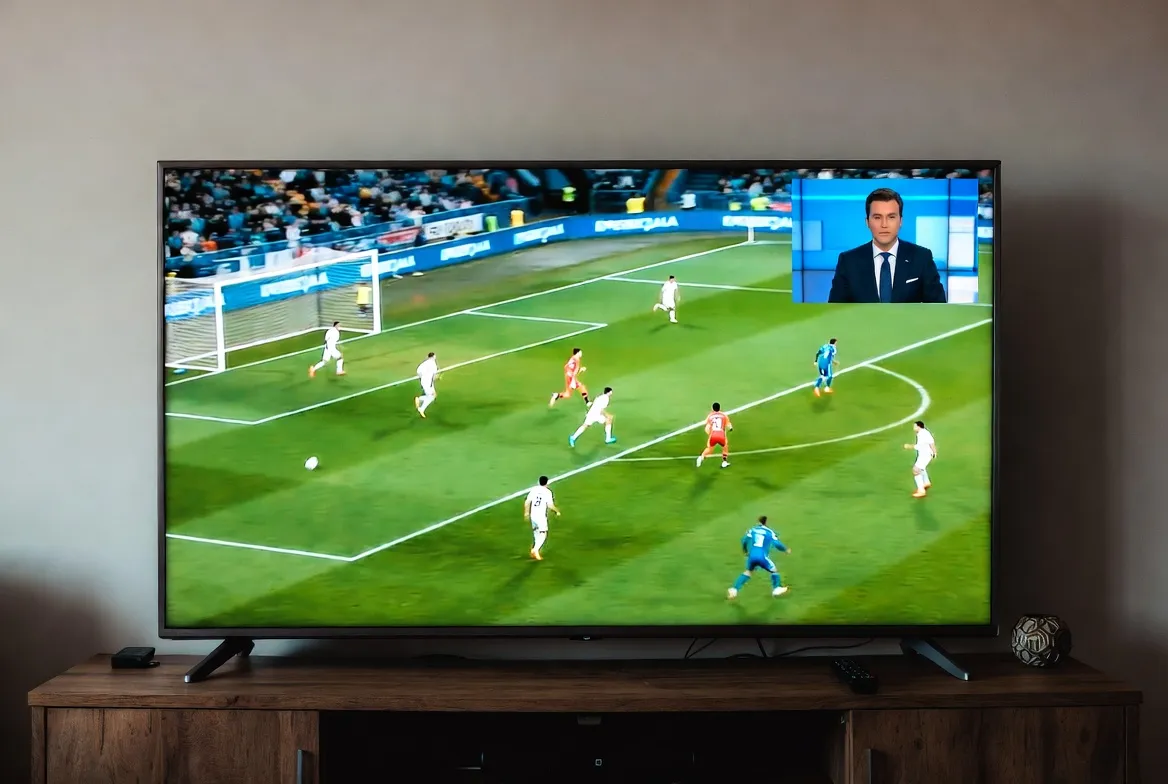
Picture-in-Picture Multi-View
Two games on at the same time? News breaking while your show is on? With IPTV picture-in-picture (PiP), you never have to choose. Watch two, four, or even nine channels simultaneously on a single screen—something cable TV never offered without expensive multi-tuner hardware.
In this step-by-step guide, learn how to enable IPTV picture-in-picture and multi-view mode on every device—Fire Stick, Android TV, iPhone, Mac, and more. We'll cover the best IPTV apps with built-in PiP, device-specific setup instructions, and pro tips for the ultimate multi-screen experience.
Watch Multiple Channels Simultaneously
StreamTV supports PiP and multi-view on all major IPTV apps. Get 12,000+ channels and watch two (or more) at the same time.
Start Your Free TrialWhat Is IPTV Picture-in-Picture (PiP)?
Picture-in-Picture (PiP) lets you watch one channel in a small floating window while another plays full-screen. Multi-view takes this further—displaying 2, 4, or even 9 channels in a grid layout on one screen. Here's the key difference:
Picture-in-Picture (PiP)
- • One full-screen channel + one floating mini-window
- • Moveable & resizable mini-window
- • Audio switches between channels
- • Available on most devices
- • Low resource usage
Multi-View (Split Screen)
- • 2, 4, 6, or 9 channels in grid layout
- • Equal-sized panels
- • Select which channel's audio to hear
- • Requires more processing power
- • Best on Android TV boxes and computers
Best IPTV Apps with Picture-in-Picture & Multi-View
Not every IPTV player supports PiP equally. Here's a ranked comparison of the best IPTV apps for picture-in-picture and multi-view:
| App | PiP Feature | Devices | Rating |
|---|---|---|---|
| TiviMate | Built-in PiP + Multi-View | Fire Stick, Android TV, Chromecast | ⭐⭐⭐⭐⭐ |
| IPTV Smarters Pro | Multi-Screen Mode | Fire Stick, Android TV, iOS, Android | ⭐⭐⭐⭐ |
| OTT Navigator | PiP + Floating Window | Android TV, Fire Stick | ⭐⭐⭐⭐ |
| GSE Smart IPTV | PiP Mode | iOS, Android, Fire Stick | ⭐⭐⭐⭐ |
| VLC Media Player | OS-Level PiP | Mac, Windows, Android, iOS | ⭐⭐⭐ |
| Perfect Player | Multi-View | Android TV, Fire Stick | ⭐⭐⭐⭐ |
Our pick: TiviMate offers the best PiP and multi-view experience with up to 9 simultaneous channels, customizable layouts, and smooth performance on Fire Stick and Android TV.
How to Use PiP in TiviMate (Step-by-Step)
Open TiviMate & Start Playing a Channel
Launch TiviMate and tune into any channel. This will be your primary (full-screen) channel.
Long-Press OK/Select Button
While watching, long-press the center OK button on your remote. The PiP/Multi-View menu will appear.
Select "Picture-in-Picture" or "Multi-View"
Choose PiP for a floating mini-window, or Multi-View for side-by-side grid layout (2, 4, 6, or 9 channels).
Browse & Add Second Channel
Navigate the channel list while the first channel keeps playing. Select your second channel—it appears in the PiP window or grid slot.
Switch Audio & Resize
Press up/down to switch audio between channels. In PiP mode, press left/right to resize the floating window. Tap the mini-window to swap which channel is full-screen.
How to Use Multi-Screen in IPTV Smarters Pro
Open IPTV Smarters Pro
Launch the app and log in with your StreamTV credentials.
Tap the Multi-Screen Icon
Look for the grid/multi-screen icon in the top menu bar (looks like 4 squares). Tap to enter multi-screen mode.
Choose Layout (2 or 4 Screens)
Select a 2-screen split or 4-screen grid layout depending on how many channels you want to watch.
Assign Channels to Each Window
Tap each window slot and browse your channel list to assign different channels. All channels play simultaneously.
Tap Any Window to Go Full-Screen
Double-tap any channel window to expand it to full-screen. Double-tap again to return to multi-view.
PiP Setup by Device: Complete Device Guide
Amazon Fire Stick / Fire TV
- Best App: TiviMate Premium — supports PiP and up to 9-channel multi-view
- Alternative: IPTV Smarters Pro — 2-4 screen split view
- Tip: Fire Stick 4K Max recommended for smooth multi-view performance
Android TV / NVIDIA Shield / Chromecast
- Best App: TiviMate — full multi-view with 9-channel grid
- Alternative: OTT Navigator — customizable PiP window placement
- Tip: NVIDIA Shield's powerful processor handles 4+ streams smoothly
iPhone & iPad (iOS)
- Best App: GSE Smart IPTV — supports native iOS PiP
- How: Start playing → swipe home → channel plays in floating PiP window while you browse or use other apps
- Tip: Enable PiP in Settings → General → Picture in Picture → Start PiP Automatically
Android Phone & Tablet
- Best App: IPTV Smarters Pro — multi-screen mode on tablets
- PiP: Most apps support Android's native PiP when pressing home during playback
- Tip: Samsung tablets with DeX mode can run two IPTV apps side-by-side
Windows PC & Mac
- Best Method: Open two VLC windows with different M3U streams side by side
- Mac PiP: Safari supports PiP from web-based IPTV players
- Tip: Use IINA on Mac for native PiP that floats over other apps
Top Use Cases: When PiP Is a Game-Changer
⚽ Sports Multitasking
Two football matches on at the same time? Watch your team full-screen while keeping the other game in PiP. Switch audio when something exciting happens on the other channel.
📰 News + Entertainment
Keep breaking news in a PiP window while watching your favorite show or movie. Stay informed without missing your program.
🏈 Red Zone / Multi-Game
Create your own Red Zone experience with 4 or 9 NFL/soccer games in a multi-view grid. Better than any sports bar.
👨👩👧 Family Compromise
Dad wants sports, mom wants her show, kids want cartoons? Multi-view on a big screen gives everyone a window—no more fighting over the remote.
Never Miss a Moment Again
StreamTV supports PiP and multi-view on all major devices. Get 12,000+ live channels and watch multiple at the same time—all for just $11.88/month.
Try It FreePro Tips for the Best PiP Experience
Use Wired Internet or 5GHz WiFi
Multi-view uses 2-9x the bandwidth of single-channel viewing. Ethernet or 5GHz WiFi prevents buffering across multiple streams.
Choose a Powerful Device
Fire Stick 4K Max, NVIDIA Shield, or a decent Android TV box. Basic Fire Sticks may struggle with 4+ simultaneous streams.
Set SD Quality for PiP Channels
In multi-view, set secondary channels to SD quality. You won't notice the difference in small windows, and it dramatically reduces buffering.
Create Favorites for Quick PiP Setup
Pre-organize your sports, news, and entertainment channels into favorites groups. This makes adding channels to PiP slots fast on game day.
Use a Bigger Screen
PiP shines on 50"+ TVs where multi-view panels are still large enough to follow the action. On smaller screens, stick to 2-channel PiP.
Bandwidth Requirements for Multi-View
| View Mode | Channels | Min. Speed | Recommended |
|---|---|---|---|
| Single Channel (HD) | 1 | 10 Mbps | 15 Mbps |
| PiP (2 Channels) | 2 | 15 Mbps | 25 Mbps |
| Multi-View (4 Channels) | 4 | 25 Mbps | 40 Mbps |
| Multi-View (9 Channels) | 9 | 40 Mbps | 75 Mbps |
Frequently Asked Questions
Does PiP use two connections from my plan?
No! PiP and multi-view run within a single app on one device, so it counts as one connection. You're not using multiple logins—just one device showing multiple streams.
Can I watch 4K in PiP mode?
The main channel can be 4K, but PiP windows typically run at HD or SD for performance. In multi-view, all channels default to HD for smooth playback.
Why is my PiP buffering?
Multi-view requires more bandwidth and processing power. Try: 1) Switch to wired internet, 2) Reduce the number of channels, 3) Lower quality to SD, 4) Close background apps.
Is PiP available on Samsung/LG Smart TVs?
Native Smart TV IPTV apps have limited PiP support. For the best experience, use an Amazon Fire Stick or Android TV box plugged into your Smart TV.
Can I record while using PiP?
Yes! TiviMate Premium supports recording one channel while watching another in PiP mode. Perfect for saving a match while watching another live.
Ready to Watch Two Channels at Once?
StreamTV's 12,000+ channels with PiP and multi-view support means you'll never miss a moment. Two games, news + entertainment, or your own custom sports bar—all for $11.88/month.
PiP on every device • 12,000+ channels • No contracts • Instant setup
Conclusion
Picture-in-picture transforms how you watch TV. No more choosing between two live events, no more flipping back and forth and missing key moments. With the right IPTV app and StreamTV's reliable streams, you can watch 2, 4, or even 9 channels simultaneously on a single screen.
Whether you're a sports fanatic who needs every game visible, a news junkie who monitors multiple networks, or a family that refuses to compromise—IPTV PiP delivers. Start your free trial today and experience multi-view IPTV for yourself.