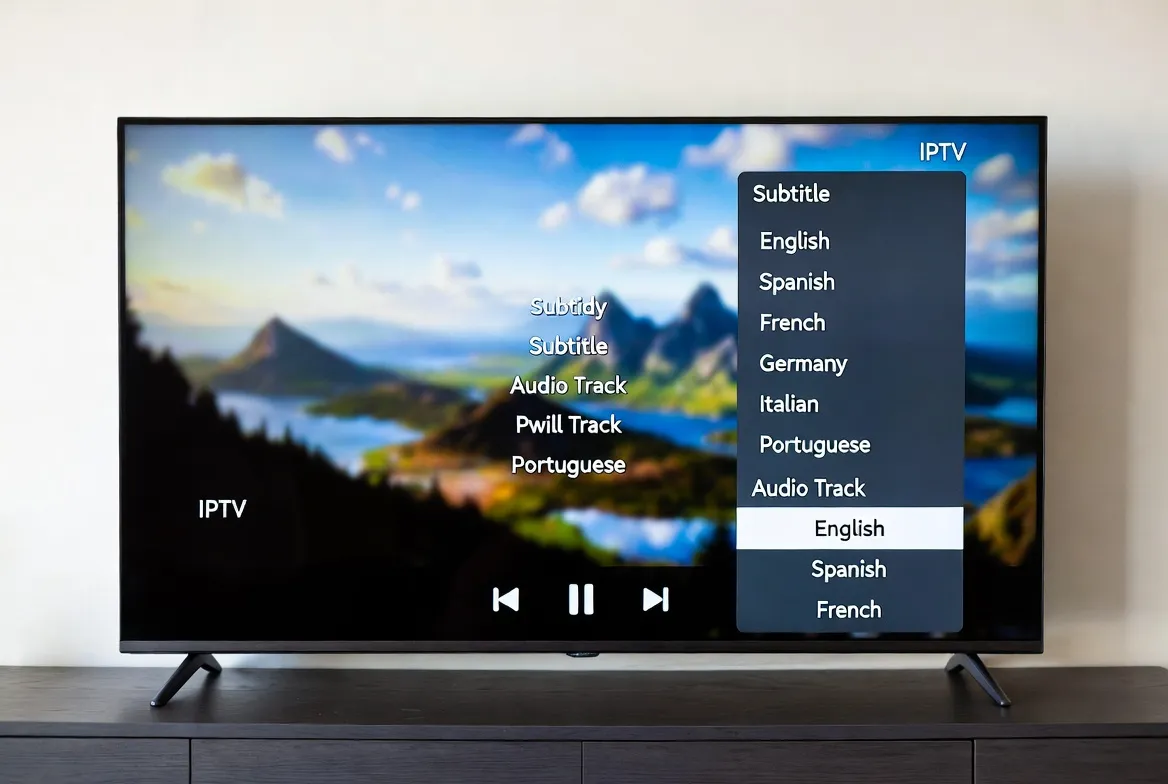
IPTV Subtitle & Audio Track Switching: Multi-Language Streaming
Stream in Any Language. Understand Everything.
50+ languages • Customizable subtitles • Multi-audio tracks
One of IPTV's most powerful features is multi-language streaming — the ability to switch subtitles, audio tracks, and closed captions on the fly. Whether you're in a multilingual household, learning a new language, or watching international content, IPTV subtitle and audio switching puts you in full control. This guide covers every player, every device, and every format you need to know.
Why Multi-Language IPTV Matters
Over 40% of IPTV users live in multilingual households. Traditional cable gives you one language per channel — IPTV gives you multiple audio tracks and subtitle options on a single stream. Watch a Turkish drama with English subtitles, switch Premier League commentary from English to Arabic, or add Spanish closed captions to a Hollywood movie — all without changing channels.
50+ Languages
Subtitles and audio tracks spanning every major world language
Multi-Audio Tracks
Switch commentary language mid-stream without buffering
Custom Subtitles
Adjust font, size, color, position, and timing to your preference
Remember Preferences
Set your default language once — applies to all future streams
Instant Switching
Change languages in real-time with zero delay or rebuffering
Every Device
Works on Fire Stick, Smart TVs, phones, tablets, and PCs
How to Switch Subtitles & Audio by IPTV Player
Every IPTV player handles subtitles and audio tracks differently. Here's a complete comparison of the most popular apps:
| Player | Subtitle Support | Audio Switch | Customization | Rating |
|---|---|---|---|---|
| TiviMate | Built-in + external SRT | Long-press OK button | Font, size, color, position, delay | Best overall |
| IPTV Smarters Pro | Built-in subtitles | Settings icon → Audio | Size, color, background | Most user-friendly |
| GSE Smart IPTV | Built-in + OpenSubtitles | Audio track selector | Font, size, encoding | Best for iOS |
| VLC for IPTV | All formats (SRT, ASS, SSA) | Audio menu → Track | Full customization | Most versatile |
| Kodi + PVR | Addons + built-in | Audio settings menu | Unlimited via addons | Most powerful |
| OTT Navigator | Built-in + external | Swipe gesture | Font, size, offset | Best gesture controls |
Supported Languages by Region
StreamTV provides channels with multi-language IPTV streaming support across every major world region:
European Languages
15+ languagesEnglish, Spanish, French, German, Italian, Portuguese, Dutch, Swedish, Norwegian, Danish, Polish, Czech, Greek, Turkish
Asian Languages
12+ languagesArabic, Hindi, Urdu, Mandarin, Cantonese, Japanese, Korean, Thai, Vietnamese, Tagalog, Malay, Indonesian
African Languages
7+ languagesSwahili, Amharic, Hausa, Yoruba, Zulu, Afrikaans, French (West Africa)
Americas Languages
5+ languagesEnglish, Spanish (Latin), Portuguese (Brazilian), French (Canadian), Haitian Creole
Subtitle Formats Explained
Not all subtitle formats are equal. Here's what you need to know about IPTV subtitle formats and compatibility:
| Format | Compatibility | Best For |
|---|---|---|
| SRT (SubRip) | Universal — works on all players | Simple text subtitles |
| ASS/SSA | VLC, Kodi, MX Player | Styled subtitles with fonts & colors |
| WebVTT | Web-based players, browsers | HTML5 streaming |
| DVB Subtitles | Built into IPTV streams | Live TV broadcast subtitles |
| Teletext | European IPTV channels | Classic European subtitle format |
Device-by-Device Setup Instructions
Here's how to enable and switch IPTV subtitles and audio tracks on every major device:
Amazon Fire Stick
Settings → Accessibility → Subtitles → Enable. In IPTV app: press Menu → Subtitles/CC
Android TV / Google TV
Settings → Device Preferences → Accessibility → Captions. In app: tap CC icon
Apple TV / iPhone
Settings → Accessibility → Subtitles & Captioning. In app: swipe down → Subtitles
Smart TV (Samsung/LG)
Settings → General → Accessibility → Subtitle. During playback: press CC on remote
Windows PC / Mac
In VLC: Video → Subtitle Track. In browser player: click CC button on player controls
MAG Box
During playback: press Menu → Audio/Subtitle → Select language from list
Pro Tip: Set your preferred subtitle and audio language in your IPTV player's global settings. Most apps will automatically select your language when available, saving you from switching manually every time you change channels.
Troubleshooting Common Subtitle Issues
What Multilingual Viewers Say
"My family speaks three languages at home. With StreamTV, my parents watch Turkish dramas with Turkish audio, I add English subtitles, and my kids switch to the French audio track. One subscription, three languages!"
— Elif M., Brussels
"I'm learning Korean by watching K-dramas with Korean audio and English subtitles. The subtitle customization in TiviMate is incredible — I made them larger and changed the color so they're easy to read."
— Sarah L., London
Voice Search Ready: Ask Your Smart Assistant
Frequently Asked Questions
How do I change subtitles on IPTV?
Press the subtitle/CC button on your remote or tap the settings icon during playback. Select your preferred language from available options. In TiviMate, long-press the OK button. In IPTV Smarters, tap the gear icon. Most players remember your preference for future sessions.
Can I switch audio languages on IPTV?
Yes! Most international IPTV channels offer 2-8 audio tracks. Press the audio/language button during playback to switch. For example, a Premier League match might offer English, Spanish, and Arabic commentary simultaneously. StreamTV provides channels with multi-audio support across 50+ languages.
What IPTV player has the best subtitle support?
TiviMate leads with fully customizable subtitles (font, size, color, position, timing delay). VLC offers the most format compatibility (SRT, ASS, SSA, WebVTT). GSE Smart IPTV is best for iOS users. For power users, Kodi with subtitle addons provides unlimited customization.
Why aren't subtitles showing on my IPTV?
Common fixes: 1) Enable subtitles in both your device settings AND the IPTV app. 2) Check if the channel actually provides subtitle tracks (not all do). 3) Try switching subtitle format (DVB vs. Teletext). 4) Update your IPTV player to the latest version. 5) Clear app cache and restart.
Can I add external subtitles to IPTV streams?
Yes, players like VLC, Kodi, and TiviMate support loading external SRT/ASS subtitle files. Download subtitle files from OpenSubtitles.org, place them on your device, and load them through the player's subtitle menu. This is especially useful for VOD content.
Does IPTV support closed captions for hearing impaired?
Yes! Many IPTV channels include CC (Closed Captions) and SDH (Subtitles for Deaf and Hard of Hearing) tracks that include sound descriptions like [applause] and [music]. Enable these through your device's accessibility settings for the best experience.
Stream in Your Language. Every Channel.
Join millions of multilingual viewers enjoying 29,000+ channels with full subtitle and audio track support in 50+ languages. Start streaming in your preferred language today.
✓ 50+ subtitle languages ✓ Multi-audio tracks ✓ All devices supported ✓ Cancel anytime