IPTV on Windows PC & Laptop: Best Players & Configuration Guide for 2026
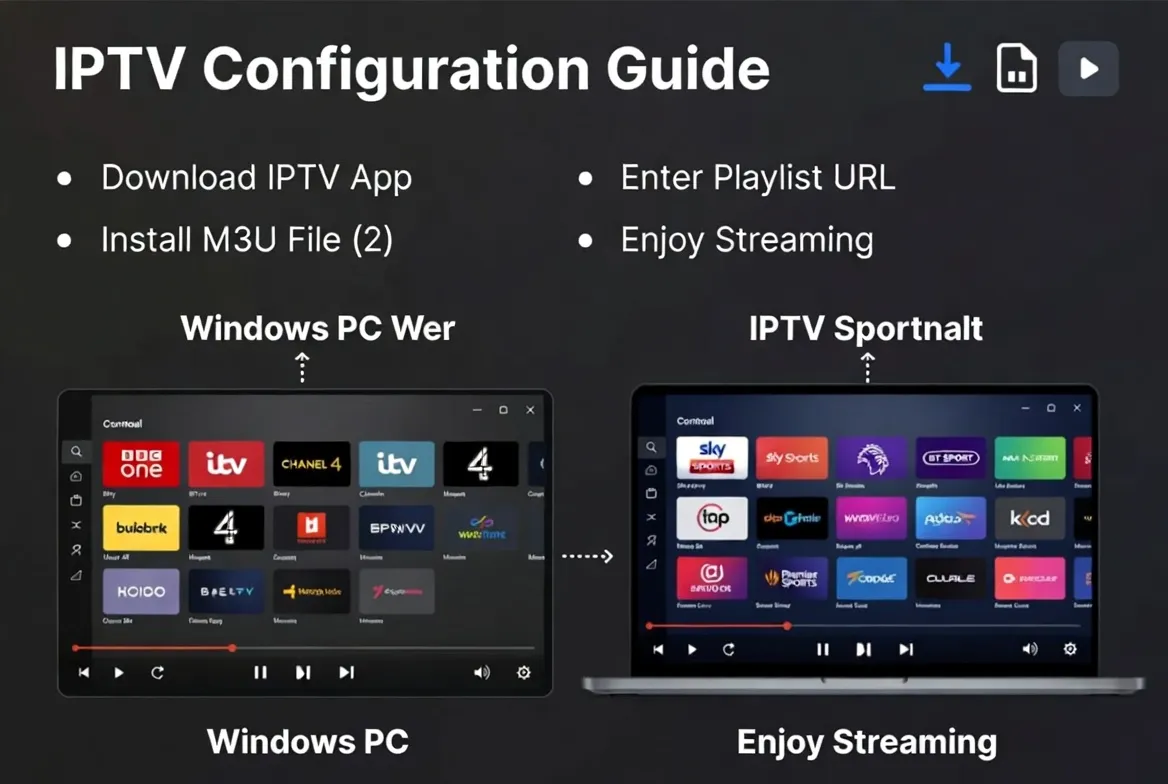
Windows IPTV Setup Guide
Want to watch live TV on your Windows PC or laptop? You don't need cable, a satellite dish, or even a TV. With the right IPTV player and a reliable service like StreamTV, your computer becomes a full-featured television with 12,000+ live channels, EPG guides, recording capability, and picture-in-picture.
Whether you're working from home and want news in the corner, a student streaming sports between classes, or simply prefer watching on your monitor—this guide covers the best IPTV players for Windows, step-by-step setup tutorials, and optimization tips for buffer-free streaming in 2026.
Turn Your PC Into a Smart TV
12,000+ live channels, movies, sports & international TV—all on your Windows PC or laptop for just $11.88/month.
Get Your Free TrialWhy Watch IPTV on Your Windows PC or Laptop?
Your Windows computer is already the most versatile device you own. Adding IPTV takes it to the next level:
Dual Monitor TV
Work on one screen, watch live TV on the other. Perfect for remote workers, traders monitoring news, and multitaskers.
No Extra Hardware
No Fire Stick, no Android box, no smart TV needed. Your existing PC handles everything—just install a free player app.
Superior Customization
Windows IPTV players offer more settings than any streaming box—custom skins, keyboard shortcuts, recording, and advanced video tweaking.
Record & Save
Record live TV directly to your hard drive. Windows PCs have virtually unlimited storage compared to streaming devices.
Best IPTV Players for Windows: Complete Comparison
Choosing the right IPTV player for your Windows PC depends on what features matter most to you. Here's how the top options stack up:
| Player | EPG | M3U | Xtream | PiP | Record | Rating |
|---|---|---|---|---|---|---|
| VLC Media Player | ❌ | ✅ | ❌ | ✅ | ✅ | ⭐⭐⭐⭐ |
| MyIPTV Player | ✅ | ✅ | ❌ | ❌ | ❌ | ⭐⭐⭐⭐ |
| IPTV Smarters (Web) | ✅ | ✅ | ✅ | ✅ | ❌ | ⭐⭐⭐⭐⭐ |
| Kodi + PVR IPTV | ✅ | ✅ | Via addon | ❌ | ✅ | ⭐⭐⭐⭐ |
| SimpleTV | ✅ | ✅ | ❌ | ✅ | ✅ | ⭐⭐⭐ |
| Potplayer | ❌ | ✅ | ❌ | ✅ | ✅ | ⭐⭐⭐⭐ |
Our top pick: IPTV Smarters (Web/Desktop) for the most complete experience with Xtream Codes support, EPG, and multi-screen. VLC is best for beginners who want instant setup with zero learning curve.
Method 1: How to Watch IPTV on VLC Media Player
VLC is the most popular media player in the world—and it plays IPTV streams perfectly. Here's how to set it up in under 2 minutes:
Download & Install VLC
Go to videolan.org and download the Windows installer. Run the setup—it takes 30 seconds.
Get Your M3U Playlist URL
After signing up for StreamTV, you'll receive an M3U playlist URL via email. Copy this URL.
Open Network Stream in VLC
Launch VLC → click Media → Open Network Stream (or press Ctrl+N). Paste your M3U URL and click Play.
Browse Channels
Click View → Playlist (Ctrl+L) to see all channels organized by category. Double-click any channel to start watching.
Save the Playlist
Go to Media → Save Playlist so you don't have to re-enter the URL. VLC will remember your channels on next launch.
Method 2: MyIPTV Player from Microsoft Store
MyIPTV Player is a dedicated Windows IPTV app available directly from the Microsoft Store. It's clean, modern, and supports EPG (Electronic Program Guide):
Install from Microsoft Store
Open Microsoft Store, search "MyIPTV Player", and click Install. It's free.
Add Your Playlist
Open the app → go to Settings → Add New Playlist. Enter a name (e.g., "StreamTV") and paste your M3U URL.
Add EPG Source (Optional)
In Settings → EPG Source, paste your EPG/XMLTV URL from StreamTV. This adds a TV guide with program schedules.
Start Watching
Browse by channel groups, search for specific channels, and enjoy with a clean Windows-native interface.
Method 3: IPTV Smarters Pro (Web Version for Windows)
IPTV Smarters offers a web-based version that runs in your browser—no installation required. It's the most feature-rich option with Xtream Codes support:
Open IPTV Smarters Web Player
Visit the IPTV Smarters web app in Chrome, Edge, or Firefox on your Windows PC.
Enter Xtream Codes Credentials
Select "Xtream Codes API" login. Enter the Server URL, Username, and Password provided by StreamTV.
Browse & Watch
Navigate Live TV, Movies, and Series categories. Enjoy EPG, favorites, search, and multi-screen mode—all in your browser.
Method 4: Kodi with PVR IPTV Simple Client
Kodi is a powerful open-source media center. With the PVR IPTV Simple Client addon, it becomes a fully-featured IPTV player with EPG and recording:
Install Kodi for Windows
Download from kodi.tv or the Microsoft Store. Install and launch.
Enable PVR IPTV Simple Client
Go to Settings → Add-ons → My add-ons → PVR clients → PVR IPTV Simple Client → Enable.
Configure M3U & EPG
Click Configure → set M3U Playlist URL to your StreamTV link. Under EPG Settings, add your XMLTV URL.
Restart & Watch
Restart Kodi. Go to TV → Channels to see your full channel list with program guide.
Get Streaming in Under 5 Minutes
Sign up for StreamTV and receive your M3U and Xtream Codes credentials instantly. Works with every Windows IPTV player listed above.
Start Your Free TestWindows IPTV Optimization: Fix Buffering & Improve Quality
Getting the best IPTV experience on Windows requires a few tweaks. Follow these pro tips for smooth, buffer-free streaming:
Use Hardware Acceleration
In VLC: Tools → Preferences → Input/Codecs → set Hardware-accelerated decoding to "Automatic". This offloads video processing to your GPU for smoother playback.
Increase Network Caching
In VLC: Tools → Preferences → Show All → Input/Codecs → set "Network caching" to 1500-3000ms. This buffers more data before playback, reducing stutters.
Use Wired Ethernet
WiFi adds latency and packet loss. If possible, connect your PC directly to your router with an Ethernet cable for the most stable IPTV experience.
Disable Windows Firewall for IPTV App
If streams won't load, add your IPTV player as an exception in Windows Firewall settings (Control Panel → Firewall → Allow an app).
Close Background Apps
Browsers, cloud sync, and Windows updates consume bandwidth. Close unnecessary apps or pause updates while streaming for smoother playback.
Update GPU Drivers
Outdated graphics drivers cause video glitches. Update via NVIDIA GeForce Experience, AMD Adrenalin, or Intel Driver Support Assistant.
Minimum System Requirements for IPTV on Windows
| Component | Minimum (SD/HD) | Recommended (FHD/4K) |
|---|---|---|
| OS | Windows 10 | Windows 11 |
| CPU | Dual-core 2.0 GHz | Quad-core 2.5 GHz+ |
| RAM | 4 GB | 8 GB+ |
| Internet | 15 Mbps | 25+ Mbps |
| GPU | Integrated (Intel HD) | Dedicated (for 4K) |
Good news: Almost any Windows PC built after 2018 can handle IPTV streaming comfortably. Even budget laptops play HD IPTV without issues.
Frequently Asked Questions
What is the best free IPTV player for Windows?
VLC Media Player is the best free option for beginners—it's reliable, fast, and requires zero configuration beyond pasting your M3U URL. For more features, try MyIPTV Player from the Microsoft Store.
How do I watch IPTV on my Windows laptop?
Install VLC or MyIPTV Player, get a StreamTV subscription ($11.88/month), paste your M3U playlist URL into the player, and start watching. The entire process takes under 5 minutes.
Can I record IPTV streams on my PC?
Yes! VLC, Kodi, and SimpleTV all support recording live IPTV to your hard drive. In VLC, press Shift+R to start recording and Shift+R again to stop.
Why is my IPTV buffering on Windows?
Common fixes: 1) Increase VLC network cache to 2000ms, 2) Use wired Ethernet instead of WiFi, 3) Enable hardware acceleration, 4) Close bandwidth-heavy background apps, 5) Check your internet speed—15+ Mbps recommended.
Can I connect my PC to my TV for IPTV?
Absolutely! Use an HDMI cable from your PC to your TV, then watch IPTV on the big screen. This turns any TV into a smart TV with 12,000+ channels.
Does IPTV work on Windows 11?
Yes! All IPTV players listed in this guide are fully compatible with Windows 11, Windows 10, and even Windows 8.1. VLC and Kodi also work on older Windows versions.
Start Watching IPTV on Your Windows PC Today
Turn your computer into a 12,000-channel smart TV. Free players, instant setup, and StreamTV's reliable service—all for just $11.88/month with no contracts.
Works on Windows 10 & 11 • All players free • No contracts • 24/7 support
Conclusion
Your Windows PC is already the best IPTV device you own—you just didn't know it yet. With free players like VLC, MyIPTV Player, and IPTV Smarters, setup takes minutes and gives you more features than any streaming box on the market.
Combined with StreamTV's 12,000+ channels at just $11.88/month, you get the ultimate cord-cutting solution. Start your free trial today and experience IPTV on Windows the way it should be.