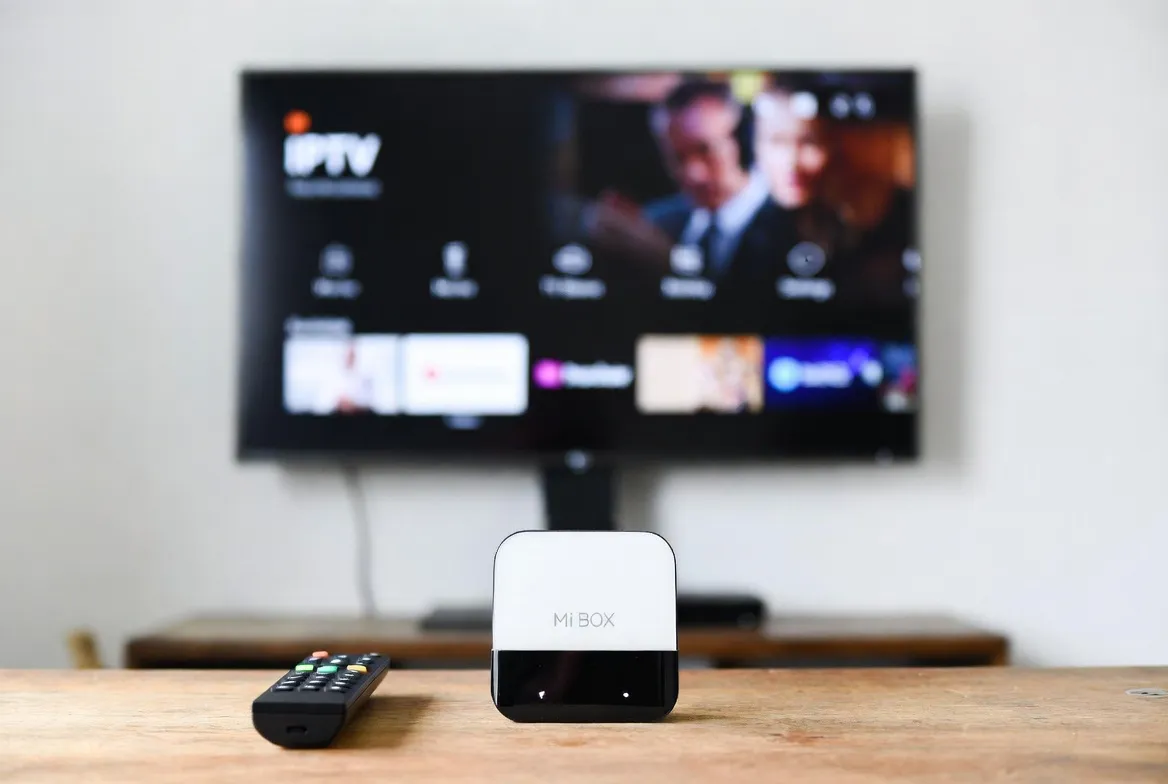
IPTV on Xiaomi Mi Box: Budget 4K Streaming Setup Guide
4K IPTV Streaming for Under $60
Mi Box S + StreamTV = 29,000+ channels in stunning quality
The Xiaomi Mi Box S is one of the best-kept secrets in the IPTV world — a budget 4K Android TV box that runs every major IPTV app flawlessly for under $60. Pair it with StreamTV at $11.88/month and you've got a complete cord-cutting setup that rivals $200 streaming devices. This guide walks you through everything: which model to buy, which app to install, and how to optimize for the best possible 4K experience.
Xiaomi Mi Box Models for IPTV
Not all Mi Box models are equal. Here's which Xiaomi Mi Box is best for IPTV:
| Model | Chip | RAM | Resolution | Price | Verdict |
|---|---|---|---|---|---|
| Mi Box S (2nd Gen) | Amlogic S905X4 | 2GB | 4K HDR | $59 | Best value — recommended |
| Mi Box S (1st Gen) | Amlogic S905X-H | 2GB | 4K HDR | $45 (used) | Still great for IPTV |
| Mi TV Stick 4K | Amlogic S905Y4 | 2GB | 4K HDR | $55 | Compact alternative |
| Mi TV Stick (FHD) | Amlogic S905Y2 | 1GB | 1080p | $30 | Budget option — HD only |
Step-by-Step: Install IPTV on Xiaomi Mi Box
Setting up IPTV on Xiaomi Mi Box S takes less than 10 minutes. Follow these steps:
Connect & Update Your Mi Box
Plug your Mi Box into your TV's HDMI port, connect to WiFi, and run any pending system updates. Go to Settings → About → System Update.
Open Google Play Store
From the home screen, open the Google Play Store. Sign in with your Google account if you haven't already.
Install Your IPTV App
Search for 'TiviMate' (recommended), 'IPTV Smarters Pro', or your preferred app. Click Install and wait for download.
Enter Your StreamTV Credentials
Open the app → Add Playlist → Choose M3U URL or Xtream Codes → Enter the login details from your StreamTV subscription.
Load EPG & Organize Channels
Import the EPG (TV guide) URL provided by StreamTV. Create favorites lists and organize channels by category.
Optimize Settings & Start Watching
Enable hardware decoding, set your preferred subtitle language, and adjust video quality. You're ready to stream 29,000+ channels!
Best IPTV Apps for Xiaomi Mi Box
| App | Setup Method | Key Features | Rating | Price |
|---|---|---|---|---|
| TiviMate | M3U URL or Xtream Codes | EPG, catch-up, favorites, multi-view, recording | Best overall | Free + Premium $5.49/yr |
| IPTV Smarters Pro | M3U URL or Xtream Codes | Simple interface, EPG, parental controls, VOD | Easiest to use | Free |
| OTT Navigator | M3U / Xtream / Stalker | EPG, multi-provider, gesture controls | Most flexible | Free + Premium |
| Kodi + PVR IPTV | M3U URL via PVR addon | Unlimited addons, recording, skins | Most powerful | Free |
| GSE Smart IPTV | M3U / Xtream Codes | Chromecast, subtitles, EPG | Good all-rounder | Free + Premium |
| Perfect Player | M3U URL | Classic TV interface, EPG, UDP proxy | Classic choice | Free |
Performance Optimization Tips
Get the absolute best 4K IPTV streaming performance from your Xiaomi Mi Box with these expert tips:
Enable Hardware Decoding
Go to your IPTV app settings → Player → Enable hardware decoding (HW+). This uses the Mi Box's dedicated chip for smoother 4K playback.
Use Ethernet Over WiFi
For the most stable 4K streaming, connect a USB Ethernet adapter ($10). This eliminates WiFi drops and buffering during peak hours.
Clear Cache Regularly
Go to Settings → Apps → [IPTV App] → Clear Cache weekly. This prevents slowdowns and keeps the interface responsive.
Set Default Audio to Auto
Settings → Device Preferences → Sound → Digital Audio Output → Auto. Ensures proper surround sound passthrough.
Disable Unused Apps
Settings → Apps → Disable bloatware you don't use. This frees RAM for smoother IPTV performance.
Update Android TV Regularly
Settings → Device Preferences → About → System Update. New updates improve stability and codec support.
Mi Box vs Competitors for IPTV
| Device | Price | OS | 4K | Verdict |
|---|---|---|---|---|
| Xiaomi Mi Box S | $59 | Android TV 12 | Yes (HDR) | Best budget 4K IPTV box |
| Amazon Fire Stick 4K Max | $55 | Fire OS | Yes (HDR/DV) | Close competitor |
| NVIDIA Shield TV | $149 | Android TV | Yes (AI Upscaling) | Premium option |
| Chromecast w/ Google TV | $49 | Google TV | Yes (HDR/DV) | Google ecosystem |
Why Mi Box Wins for IPTV: Unlike Fire Stick, Mi Box runs native Android TV with full Google Play Store access — no sideloading required. Every IPTV app installs directly, and built-in Chromecast lets you cast from your phone. At $59, it's the best value 4K IPTV box available.
What Mi Box IPTV Users Say
"Bought the Mi Box S for $59 and paired it with StreamTV. The 4K quality is incredible — I can't believe I was paying $130/month for cable when this exists. TiviMate runs perfectly on it."
— Carlos D., Houston TX
"I have Mi Boxes on every TV in my house — 4 total. Each one cost less than one month of cable. StreamTV works flawlessly on all of them with zero buffering. Best tech purchase I've ever made."
— Amir K., London UK
Voice Search Ready
Frequently Asked Questions
Can I use IPTV on Xiaomi Mi Box?
Absolutely! Xiaomi Mi Box S runs Android TV, making it one of the best budget devices for IPTV. Install TiviMate, IPTV Smarters Pro, or any Android IPTV app directly from the Google Play Store. The Mi Box S supports 4K HDR streaming and is powerful enough for 29,000+ channels.
What is the best IPTV app for Xiaomi Mi Box?
TiviMate is the top choice with the best interface, EPG, catch-up TV, and multi-screen support. IPTV Smarters Pro is the easiest for beginners. OTT Navigator is the most flexible for multiple providers. Kodi with PVR IPTV is the most powerful for advanced users.
Does Xiaomi Mi Box support 4K IPTV streaming?
Yes! The Mi Box S (both generations) supports 4K HDR with hardware H.265/HEVC decoding. Ensure you have a 25+ Mbps internet connection for smooth 4K streaming, and enable hardware decoding in your IPTV app settings.
How do I install IPTV on Xiaomi Mi Box?
Open Google Play Store on your Mi Box → search for your preferred IPTV app (e.g., TiviMate or IPTV Smarters) → Install → Open the app → Enter your M3U URL or Xtream Codes login from StreamTV → Start watching. The entire process takes under 10 minutes.
Is Xiaomi Mi Box better than Fire Stick for IPTV?
Both are excellent for IPTV. Mi Box advantages: native Android TV with Google Play Store (more app choices), built-in Chromecast, cleaner interface. Fire Stick advantages: Alexa voice control, slightly more storage (16GB). For IPTV specifically, Mi Box offers more flexibility.
Why is my IPTV buffering on Xiaomi Mi Box?
Common fixes: 1) Switch to 5GHz WiFi or use ethernet adapter. 2) Enable hardware decoding in app settings. 3) Lower stream quality to 1080p if your internet is under 25 Mbps. 4) Clear app cache. 5) Close background apps. 6) Restart your Mi Box and router.
Ready for Budget 4K IPTV?
Grab a Xiaomi Mi Box S ($59) and pair it with StreamTV ($11.88/month) for the ultimate cord-cutting setup. 29,000+ channels in 4K — total cost under $72 to get started.
✓ Works on all Mi Box models ✓ 4K HDR quality ✓ No contracts ✓ 24/7 support