How to Set Up IPTV on Samsung & LG Smart TVs — Step-by-Step 2026 Guide
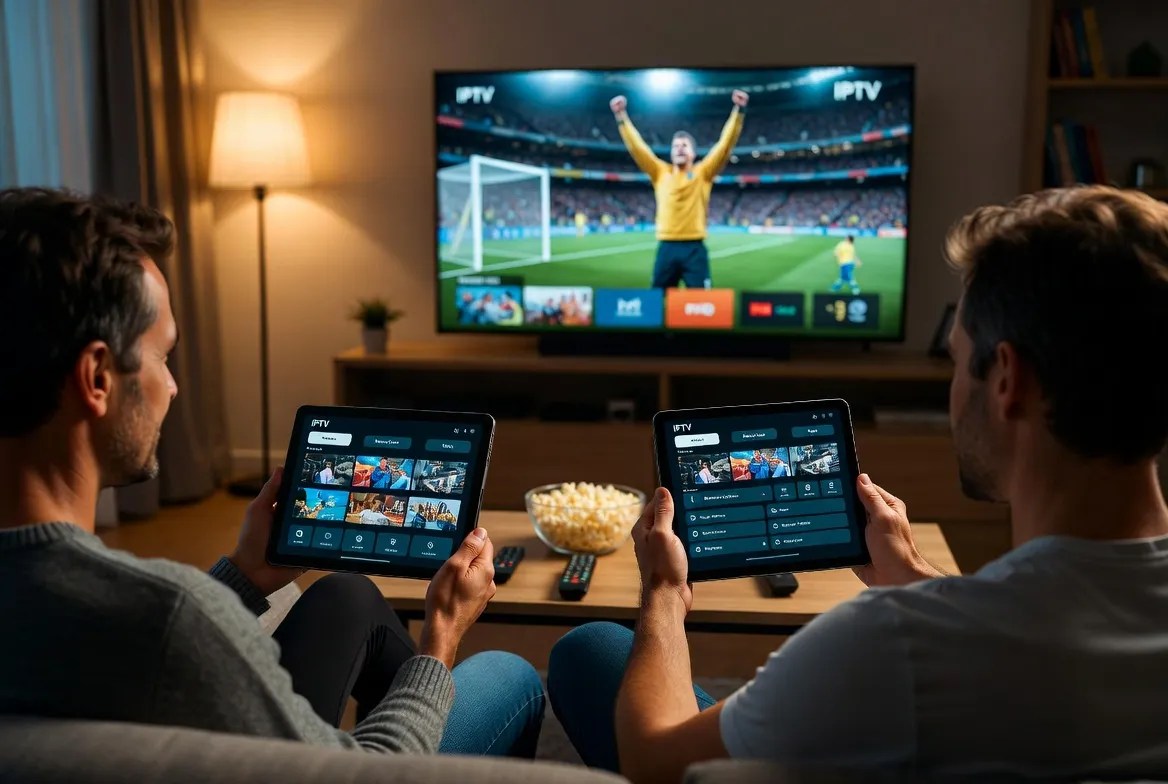
Got a Samsung or LG Smart TV? You're 5 minutes away from streaming 18,000+ live channels and 150,000+ movies in stunning 4K. This step-by-step guide covers every Samsung (Tizen) and LG (webOS) model — no tech skills required.
What You Need Before Starting
Samsung or LG Smart TV
Any model from 2017 or newer (Tizen OS / webOS)
Stable Internet
Minimum 25 Mbps for HD, 50 Mbps recommended for 4K
IPTV Subscription
Your login credentials (delivered instantly after signup)
Setup on Samsung Smart TV (Tizen OS)
Works on all Samsung Smart TVs from 2017–2026 including Crystal UHD, QLED, Neo QLED, and The Frame series.
Open the Samsung App Store
Press the Home button on your remote, then navigate to 'Apps' from the bottom menu bar.
- If you don't see 'Apps', press the Smart Hub button instead
- Make sure your TV is connected to Wi-Fi first
Search for the IPTV Player App
Use the search icon (magnifying glass) in the top-right corner. Type 'IPTV Smarters' or 'Smart IPTV' and press Enter.
- IPTV Smarters Pro is the most popular and user-friendly option
- Smart IPTV (SIPTV) also works great on Samsung TVs
Install the App
Select the app from search results and click 'Install'. The download takes about 30 seconds on a typical connection.
Open the App & Enter Your Credentials
Launch the installed app. Select 'Login with Xtream Codes API' and enter the server URL, username, and password from your IPTV subscription email.
- Your credentials are sent instantly after subscribing
- Copy-paste from your email for accuracy
- Choose 'Remember me' so you don't have to log in again
Start Watching
Once logged in, you'll see Live TV, Movies, Series, and Catch-Up categories. Navigate to Live TV to browse 18,000+ channels organized by country and genre.
- Add your favorite channels to 'Favorites' for quick access
- Use the EPG (Electronic Program Guide) to see what's on
- Switch to 4K quality in Settings → Stream Quality
Ready to Set Up Your Samsung TV?
Get your IPTV credentials instantly and start streaming in under 5 minutes.
Setup on LG Smart TV (webOS)
Compatible with all LG Smart TVs running webOS 3.5 and above (2017–2026 models), including OLED, QNED, NanoCell, and UHD series.
Open the LG Content Store
Press the Home button on your LG Magic Remote. Scroll to and select 'LG Content Store' (or 'Apps' on newer webOS versions).
- On webOS 6.0+, apps are on the home launcher bar
- Make sure your TV firmware is up to date for best compatibility
Search & Install the IPTV App
Navigate to the search bar and type 'IPTV Smarters' or 'Smart IPTV'. Select the app and press 'Install'.
- If the app isn't in the LG store, you can use the web browser method (see below)
- SS IPTV is another popular free option on LG
Launch & Configure
Open the installed app. Choose 'Xtream Codes Login' and enter your server URL, username, and password exactly as provided in your subscription email.
- Double-check for extra spaces when typing credentials
- The server URL usually starts with http:// — include the full address
Customize Your Experience
Once connected, explore the settings to optimize your viewing: set stream quality to 4K, enable EPG (program guide), and organize your favorite channels.
- Enable 'Auto-start' so the app opens when you turn on the TV
- Set your preferred language for the channel guide
- Create a favorites list for your top 20 channels
Enjoy 18,000+ Channels
You're all set! Browse Live TV, VOD Movies, TV Series, and Catch-Up TV — all from your LG remote.
Alternative: Use a Fire Stick or Android Box
If your Samsung or LG TV is an older model without app store access, simply plug in an Amazon Fire Stick or Android TV Box — it takes 2 minutes and works on any TV with an HDMI port.
Amazon Fire Stick 4K Max
$34.99
- Easiest setup
- Voice remote with Alexa
- 4K HDR support
- Compact & portable
Android TV Box
$29–$49
- Most app flexibility
- Sideload any IPTV app
- Ethernet port for stability
- Expandable storage
Set Up IPTV on Your LG or Samsung TV Today
Instant activation — watch 18,000+ channels in 4K within 5 minutes of subscribing.
Troubleshooting Common Issues
❓ App won't install from the store
Make sure your TV firmware is updated. Go to Settings → Support → Software Update. If the app still isn't available, use the Fire Stick alternative method.
❓ Login credentials not working
Double-check for extra spaces or typos. Copy-paste from your welcome email when possible. Credentials are case-sensitive.
❓ Buffering or freezing
Switch to a wired Ethernet connection for best results. If using Wi-Fi, move your router closer or use a 5GHz band. Lower stream quality from 4K to 1080p if your internet is under 25 Mbps.
❓ No EPG (program guide) showing
Go to app Settings → EPG → Update/Refresh. Some apps require you to manually set the EPG URL (provided in your welcome email).
❓ App crashes on older TV model
Try an alternative app (SS IPTV or GSE Smart IPTV). If issues persist, a $35 Fire Stick plugged into HDMI is the most reliable solution.
Samsung & LG Model Compatibility Chart
| Brand & Series | Year | Native App | 4K Support |
|---|---|---|---|
| Samsung Neo QLED / OLED | 2023–2026 | ||
| Samsung Crystal UHD | 2020–2026 | ||
| Samsung QLED | 2018–2022 | ||
| Samsung The Frame | 2019–2026 | ||
| Samsung HD Smart TV | 2017–2019 | 1080p | |
| LG OLED (C/G/B Series) | 2018–2026 | ||
| LG QNED / NanoCell | 2020–2026 | ||
| LG UHD Smart TV | 2017–2026 | ||
| Older Samsung/LG models | Pre-2017 | Use Fire Stick | 1080p |