Watch World Cup 2026 on Any Device: Smart TV, Phone, Tablet & Fire Stick Guide
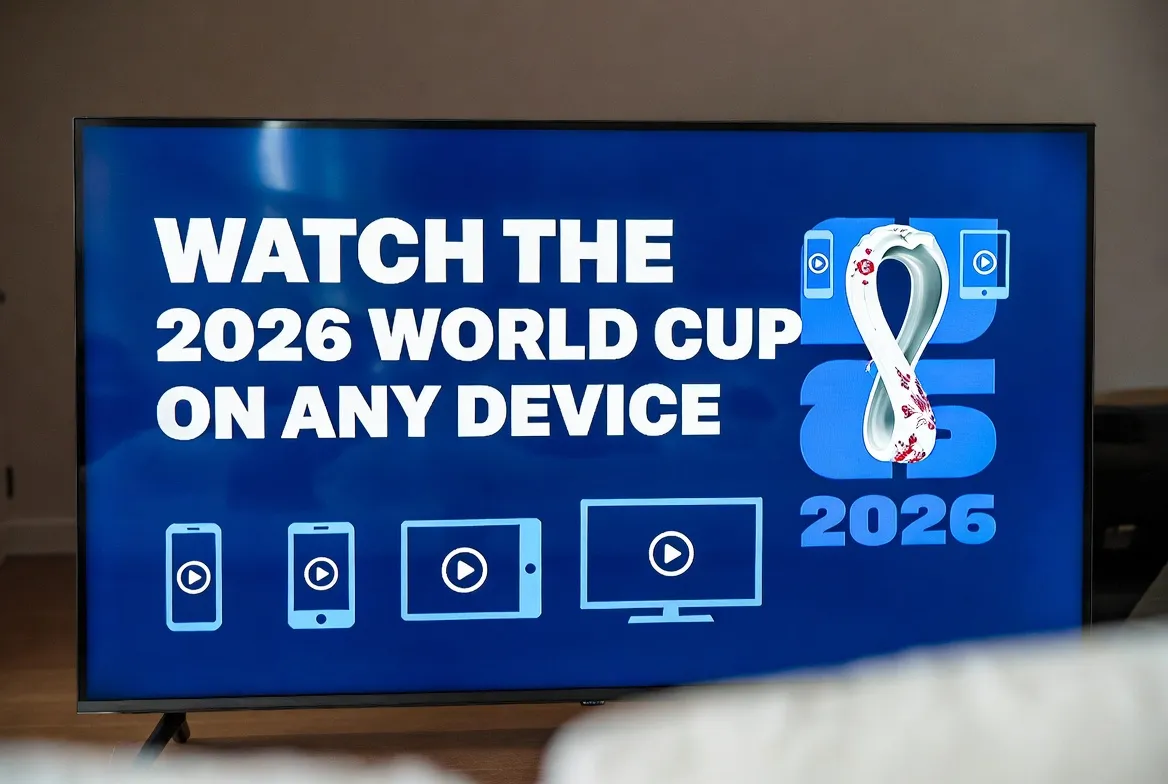
One of IPTV's biggest advantages is device flexibility. Whether you're at home on a 75-inch Smart TV, commuting with your phone, or traveling with a Fire Stick, you can watch every World Cup 2026 match in stunning quality. Here's how to set up IPTV on every major device — in under 5 minutes each.
Compatible Devices at a Glance
| Device | Max Quality | Setup Time | Difficulty |
|---|---|---|---|
| Amazon Fire Stick 4K | 4K HDR | 3 min | Easy |
| Samsung Smart TV | 4K HDR | 2 min | Easy |
| LG Smart TV | 4K HDR | 2 min | Easy |
| Android Phone/Tablet | 1080p | 1 min | Very Easy |
| iPhone / iPad | 1080p | 1 min | Very Easy |
| Android TV Box | 4K HDR | 2 min | Easy |
| Windows / Mac | 4K | 2 min | Easy |
| MAG Box | 4K | 5 min | Moderate |
Setup: Amazon Fire Stick / Fire TV
Go to Settings → My Fire TV → Developer Options → enable Apps from Unknown Sources
Open the Downloader app (free from Amazon App Store)
Enter the IPTV app URL provided after signup
Install and open the app, then enter your login credentials
Start streaming — all 104 World Cup matches are ready
💡 Pro Tip: Fire Stick 4K Max is the best model for buffer-free 4K streaming.
Setup: Samsung Smart TV
Press the Home button on your Samsung remote
Open the Samsung App Store (Smart Hub)
Search for the IPTV player app and install it
Open the app and enter your subscription credentials
Navigate to Sports channels and start watching
💡 Pro Tip: 2020+ Samsung TVs support native 4K HDR IPTV streaming.
Setup: LG Smart TV (webOS)
Press the Home button on your LG remote
Open the LG Content Store
Search for the IPTV player app and install it
Launch the app and enter your login details
Browse the EPG to find World Cup channels
💡 Pro Tip: LG's Magic Remote makes channel switching during multi-match days effortless.
Setup: Android Phone / Tablet
Open the Google Play Store on your device
Search for the recommended IPTV player app
Install and open the app
Enter your subscription credentials
Stream World Cup matches anywhere with mobile data or Wi-Fi
💡 Pro Tip: Download matches for offline viewing during flights or commutes.
Set Up in Minutes, Watch for Months
Get your IPTV subscription and start streaming World Cup 2026 on your favorite device today.
Setup: iPhone / iPad (iOS)
Open the App Store on your iPhone or iPad
Search for the recommended IPTV player app
Download and install the app
Log in with your subscription credentials
Enjoy World Cup matches in HD on your Apple device
💡 Pro Tip: Use AirPlay to cast from your iPhone to Apple TV or AirPlay-compatible smart TVs.
Setup: Android TV Box / Nvidia Shield
Open the Google Play Store on your Android TV
Search for the IPTV player app and install it
Open the app and enter your login credentials
Configure video output to 4K HDR in device settings
Start streaming — the EPG shows all World Cup schedules
💡 Pro Tip: Nvidia Shield TV Pro offers the best Android TV IPTV experience with AI upscaling.
Setup: Windows / Mac Computer
Open your web browser (Chrome, Firefox, Edge, or Safari)
Navigate to the IPTV web player URL provided after signup
Log in with your subscription credentials
Select your preferred channel or match from the guide
Watch in full-screen mode for the best experience
💡 Pro Tip: Use picture-in-picture mode to watch while working during group stage matches.
Setup: MAG Box / Set-Top Box
Connect your MAG box to your TV via HDMI and to your router via Ethernet
Go to Settings → System Settings → Servers → Portals
Enter the portal URL provided with your IPTV subscription
Save settings and restart the device
Your channel list loads automatically — navigate to Sports for World Cup
💡 Pro Tip: Ethernet connection is recommended over Wi-Fi for the most stable 4K streaming.
Optimize Your Connection for 4K World Cup Streaming
Get the best possible experience with these quick network tips:
Use Ethernet When Possible
Wired connections eliminate Wi-Fi interference and deliver the most stable 4K streams, especially for Smart TVs and set-top boxes.
Upgrade to 5GHz Wi-Fi
If using wireless, connect to your router's 5GHz band instead of 2.4GHz for faster speeds and lower latency.
Close Background Apps
Pause downloads, updates, and other streaming on your network during live matches to prioritize bandwidth.
Position Your Router
Place your Wi-Fi router in line-of-sight with your streaming device. Walls and floors reduce signal significantly.
Test Before Kickoff
Run a speed test 30 minutes before the match. You need 25+ Mbps for 4K. If lower, switch to Ethernet or reduce other network usage.
Multi-Device Streaming: Watch Everywhere
Your IPTV subscription supports simultaneous streaming on multiple devices:
Living Room
Smart TV / Fire Stick
Main match in 4K on the big screen
Kitchen
Tablet / iPad
Follow a second match while cooking
On the Go
Smartphone
Never miss a goal during your commute