IPTV on Android TV Box: Best Settings for Lag-Free 4K Streaming
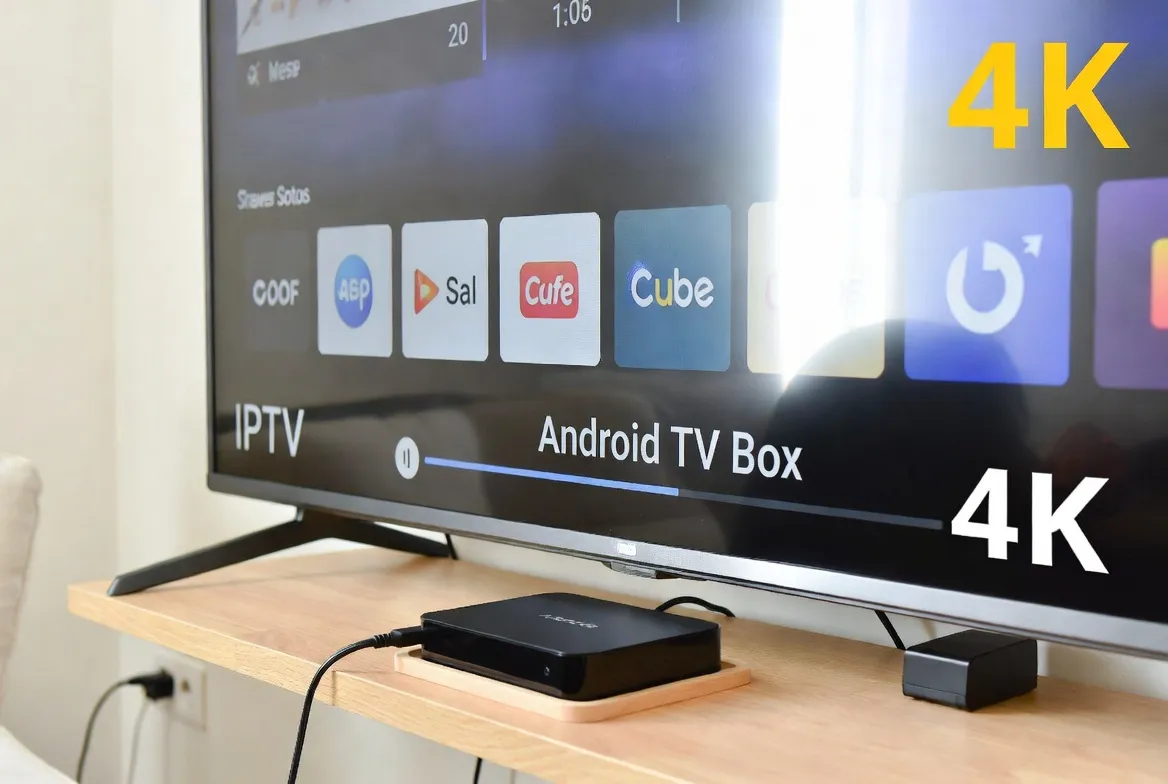
An Android TV box is one of the best devices for IPTV — affordable, powerful, and fully customizable. But out-of-the-box settings are rarely optimized for lag-free 4K IPTV streaming. This guide walks you through the best Android boxes to buy, the exact settings to configure, and the app tweaks that eliminate buffering for good — all working perfectly with StreamTV's 40,000+ channels at just $11.88/month.
🎬 Get 40,000+ Channels on Your Android Box
Test StreamTV free for 24 hours on your Android TV box. No credit card needed.
Start Your Free 24-Hour TestBest Android TV Boxes for IPTV in 2026
Not all Android boxes are created equal. For smooth 4K IPTV streaming, you need the right hardware. Here are our top picks:
| Device | Processor | RAM | Price | Rating |
|---|---|---|---|---|
| NVIDIA Shield TV Pro | Tegra X1+ | 3 GB | $199 | ⭐ Best Overall |
| Chromecast with Google TV 4K | Amlogic S905X4 | 2 GB | $49 | ⭐ Best Value |
| Xiaomi Mi Box S (2nd Gen) | Amlogic S905X4 | 2 GB | $59 | ⭐ Great Budget |
| Formuler Z11 Pro Max | Amlogic S905X4-K | 4 GB | $149 | ⭐ Best for IPTV |
| Amazon Fire TV Stick 4K Max | MediaTek MT8696 | 2 GB | $55 | ⭐ Most Popular |
| Mecool KM2 Plus | Amlogic S905X4-B | 2 GB | $69 | ⭐ Solid Choice |
💡 Minimum Specs for 4K IPTV
Processor
Quad-core (S905X3+)
RAM
2 GB minimum
Storage
8 GB+ internal
Wi-Fi
Dual-band (5GHz)
Step 1: Optimize Android System Settings
Before touching your IPTV app, optimize the Android TV box system settings for maximum performance:
Display Resolution
📍 Settings → Display → Resolution
Set to: Set to 4K (3840×2160) at 60Hz. Match your TV's native resolution.
Why: Avoids upscaling lag and ensures native 4K passthrough.
HDMI CEC
📍 Settings → Display → HDMI CEC
Set to: Enable for auto power-on/off with TV remote control.
Why: Convenience — control box with your TV remote.
Disable Screensaver
📍 Settings → Display → Screensaver
Set to: Set to 'Never' or 30 minutes.
Why: Prevents interruptions during long viewing sessions.
Enable Developer Options
📍 Settings → About → Click Build Number 7 times
Set to: Unlocks advanced performance tweaks.
Why: Required for animation and background process limits.
Reduce Animations
📍 Developer Options → Window/Transition/Animator Scale
Set to: Set all three to 0.5x or OFF.
Why: Makes the UI feel faster and frees up GPU resources.
Limit Background Processes
📍 Developer Options → Background Process Limit
Set to: Set to 'At most 2 processes'.
Why: Frees RAM for your IPTV app — critical on 2GB boxes.
Disable Auto-Updates
📍 Play Store → Settings → Auto-update
Set to: Set to 'Don't auto-update apps'.
Why: Prevents downloads during streaming that cause buffering.
Step 2: Optimize Network Settings
- Use Ethernet whenever possible — A wired connection eliminates Wi-Fi interference. Use a USB-to-Ethernet adapter if your box lacks a port.
- Connect to 5GHz Wi-Fi — If wireless, always use 5GHz band. 2.4GHz is too congested and slow for 4K streaming.
- Change DNS to Cloudflare — Settings → Network → DNS: Primary 1.1.1.1, Secondary 1.0.0.1. Faster DNS = faster channel loading.
- Disable VPN if not needed — VPNs add latency. Only use one if your ISP throttles IPTV traffic.
- Restart router before streaming — Clears cached connections and refreshes IP assignment.
Ready to Test These Settings?
Get StreamTV credentials and try 40,000+ channels on your optimized Android box — free for 24 hours.
📺 Start Your Free 24-Hour TrialStep 3: Optimal IPTV App Settings
The right app with the right settings is the key to lag-free IPTV on Android. Here are the optimal configurations for the top three apps:
TiviMate (Recommended)
- Player: ExoPlayer (default)
- Buffer size: 3 seconds
- Decoder: Hardware
- Audio: Auto-detect
- EPG update: Every 24 hours
- Channel switch: Fast mode
- Aspect ratio: Fit to screen
- Subtitle: Off (reduces load)
IPTV Smarters Pro
- Player: Built-in (or VLC)
- Buffer: Medium
- Auto-reconnect: Enabled
- Stream format: MPEG-TS
- User-agent: Default
- EPG timeshift: Match timezone
- Aspect ratio: 16:9
- Background play: Disabled
OTT Navigator
- Player: Internal (ExoPlayer)
- Buffer: Moderate
- Decoder: HW+ (hardware plus)
- Channel switch: Fast mode
- Subtitles: Off
- EPG: Auto-update daily
- Favorites: Organize by category
- Notifications: Off
Step 4: Storage & Maintenance Optimization
- Clear app cache weekly — Settings → Apps → IPTV App → Clear Cache. Old cache causes slowdowns.
- Uninstall unused apps — Free up RAM and storage. Keep only essential apps on your IPTV box.
- Disable bloatware — Pre-installed apps run in the background. Disable what you don't use.
- Keep firmware updated — System updates include performance improvements and security patches.
- Restart box daily — A quick reboot clears memory leaks and keeps everything snappy.
- Use external storage for recordings — Insert a USB drive or microSD for local recordings, keeping internal storage free.
Quick Troubleshooting Guide
| Problem | Cause | Fix |
|---|---|---|
| Constant buffering | Slow internet or Wi-Fi | Switch to Ethernet or 5GHz; reduce quality to HD |
| Audio out of sync | Hardware decoder conflict | Switch to Software decoder in player settings |
| App crashes | Low RAM / cache full | Clear cache, limit background apps, restart box |
| Black screen on channels | Wrong decoder or format | Try Hardware → Software decoder toggle |
| Slow channel switching | Buffer set too high | Reduce buffer to 1-2 seconds in TiviMate |
| Pixelation / artifacts | Weak Wi-Fi signal | Move box closer to router or use Ethernet |
| EPG not loading | Outdated EPG URL | Re-enter EPG URL, set auto-update to daily |
| Overheating / slowdown | Poor ventilation | Add heatsink or small fan; don't stack devices |
4K IPTV Performance Checklist
Unlock Your Android Box's Full Potential
40,000+ channels • 54,000+ VOD • 4K quality • Optimized for Android
All for just $11.88/month — try it free for 24 hours
🚀 Get Your Free 24-Hour Trial NowNo credit card required • Instant activation • Cancel anytime