IPTV for Seniors: Large Font Guides & Voice Remote Setup Tips
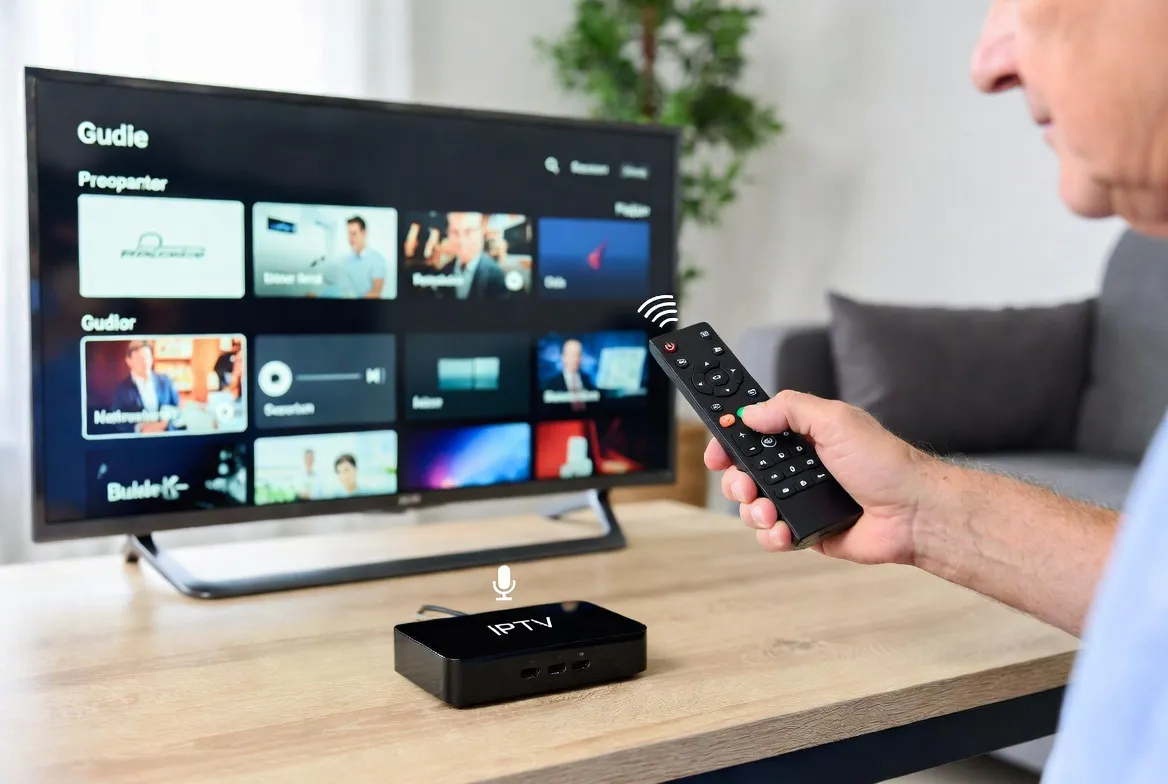
Seniors shouldn't have to struggle with complicated technology just to watch TV. If you're helping a parent or grandparent set up IPTV, or you're a senior looking for a simple, affordable TV solution, this guide is for you. We'll walk through everything in plain language with large, easy-to-read steps — from choosing the right device to using voice commands so you never have to type or scroll through menus.
📋 What This Guide Covers
- ✅ Best device for seniors (just one recommendation — simple!)
- ✅ Step-by-step setup with large, clear instructions
- ✅ Voice remote setup — say what you want to watch
- ✅ Accessibility settings for vision and hearing
- ✅ Creating a favorites list for easy channel access
- ✅ Troubleshooting common issues
📺 Try IPTV Free — No Commitment
Test 40,000+ channels for 24 hours. Perfect way to try before you buy — for you or a loved one.
Start Your Free 24-Hour TestWhy IPTV Is Perfect for Seniors
💰 Save Money
Replace $150–$250/month cable bills with $11.88/month. Many seniors are on fixed incomes — this saves over $2,000/year.
📺 More Channels They Love
Classic movies, news (CNN, Fox, BBC), religious channels, game shows, cooking shows, nature documentaries — all included.
🗣️ Voice Control
No complicated remotes or typing. Just press the microphone button and say 'Watch CNN' or 'Play classic movies'.
🌍 Home Country Channels
For immigrant seniors missing TV from home — channels from 120+ countries in their native language.
The Best Device for Seniors: Amazon Fire Stick 4K Max
We recommend one device to keep things simple — the Amazon Fire Stick 4K Max. Here's why it's perfect for seniors:
- Voice remote included — Press the button and talk. No typing!
- Plugs into any TV — Works with any TV that has an HDMI port
- Simple remote — Only a few buttons needed for daily use
- TV power control — One remote controls Fire Stick AND the TV
- $55 one-time cost — No monthly equipment fees
- Widely available — Buy at Amazon, Best Buy, Walmart, or Target
Easy Setup Guide (Large Text Instructions)
Follow these steps one at a time. Each step is simple. Take your time — there's no rush!
PLUG IN THE FIRE STICK
Insert the Fire Stick into an HDMI port on the back or side of your TV. Plug the USB power cable into the Fire Stick and into a wall outlet.
TURN ON YOUR TV
Use your TV remote to turn on the TV. Switch to the correct HDMI input (usually HDMI 1 or HDMI 2). You should see the Fire Stick setup screen.
CONNECT TO YOUR WI-FI
The Fire Stick will ask you to select your Wi-Fi network. Choose your home Wi-Fi name from the list. Enter your Wi-Fi password using the on-screen keyboard. (Ask a family member for help if needed.)
SIGN IN TO YOUR AMAZON ACCOUNT
If you have an Amazon account, sign in. If not, you can create one for free. This is needed to download apps.
DOWNLOAD THE IPTV APP
Press the VOICE BUTTON on your remote and say: 'Search for IPTV Smarters'. Select 'IPTV Smarters Pro' from the results. Click 'Download' and wait for it to install.
OPEN THE APP AND ENTER YOUR LOGIN
Open IPTV Smarters Pro. Select 'Login with Xtream Codes API'. Enter the username, password, and server URL that StreamTV sent you. Click 'Add User'. Your channels will load!
START WATCHING!
Browse through channels by category (News, Sports, Movies, etc.) or use the voice remote to say the channel name. That's it — you're done!
Using the Voice Remote (No Typing Needed!)
The voice remote is the best feature for seniors. Instead of scrolling through thousands of channels, just press the microphone button and speak:
Voice Commands You Can Use:
Perfect Gift for Parents & Grandparents
Give them 40,000+ channels, voice control, and $2,000/year in savings. Try it free first!
🎁 Start a Free 24-Hour TrialAccessibility Settings for Vision & Hearing
🔤 Larger Text Size
📍 Fire Stick → Settings → Accessibility → Text Size
Set to 'Large' or 'Largest'. Makes all menus and channel names easier to read.
🔊 Closed Captions (Subtitles)
📍 Fire Stick → Settings → Accessibility → Closed Captions
Turn ON. Set text size to 'Large' and background to 'Black' for maximum readability.
🎨 High Contrast Mode
📍 Fire Stick → Settings → Accessibility → High Contrast Text
Turn ON. Makes text stand out against backgrounds — much easier to read.
🔉 Audio Description
📍 Fire Stick → Settings → Accessibility → Audio Description
Turn ON for visually impaired users. Narrates what's happening on screen during pauses in dialogue.
🔈 Volume Leveling
📍 TV Settings → Sound → Auto Volume
Enable on your TV to prevent sudden loud commercials or quiet dialogue.
🖥️ Screen Magnifier
📍 Fire Stick → Settings → Accessibility → Screen Magnifier
Turn ON. Triple-tap the remote to zoom into any part of the screen.
Creating a Favorites List (Easy Access to Loved Channels)
Instead of scrolling through 40,000 channels, set up a favorites list with just the channels they watch most. Here's how:
- 1. Open IPTV Smarters and go to "Live TV"
- 2. Find a channel they like (e.g., CNN, Hallmark, Fox News)
- 3. Long-press the OK button on the remote
- 4. Select "Add to Favorites"
- 5. Repeat for 10–15 favorite channels
- 6. Now they can go to the "Favorites" section and see ONLY their channels!
💡 Suggested Favorites for Seniors
Simple Troubleshooting (When Something Goes Wrong)
❓ TV shows a black screen
✅ Make sure the TV is on the correct HDMI input. Try pressing the HOME button on the Fire Stick remote.
❓ Channels aren't loading
✅ Check your Wi-Fi. Unplug the Fire Stick for 30 seconds, then plug it back in.
❓ Sound isn't working
✅ Press the VOLUME UP button on the remote. Make sure the TV isn't muted.
❓ Picture is freezing
✅ This usually means slow internet. Move the router closer or restart it by unplugging for 30 seconds.
❓ Remote isn't responding
✅ Replace the batteries (2 AAA batteries). Hold the HOME button for 10 seconds to re-pair.
❓ Can't find a channel
✅ Use the VOICE button and say the channel name. Or check the Favorites list.
How Much Seniors Save
$200/mo
Avg. Cable Bill
$11.88/mo
StreamTV IPTV
$2,257/yr
Annual Savings
That's extra money for grandkids, hobbies, travel, or simply peace of mind.
Simple TV, Big Savings, Happy Seniors
Voice control • Large text • 40,000+ channels • Classic movies & news
All for just $11.88/month — try it free for 24 hours
📺 Get Your Free 24-Hour Trial NowNo credit card required • Instant activation • Cancel anytime