How to Record Live TV on IPTV: Cloud DVR Setup Made Simple
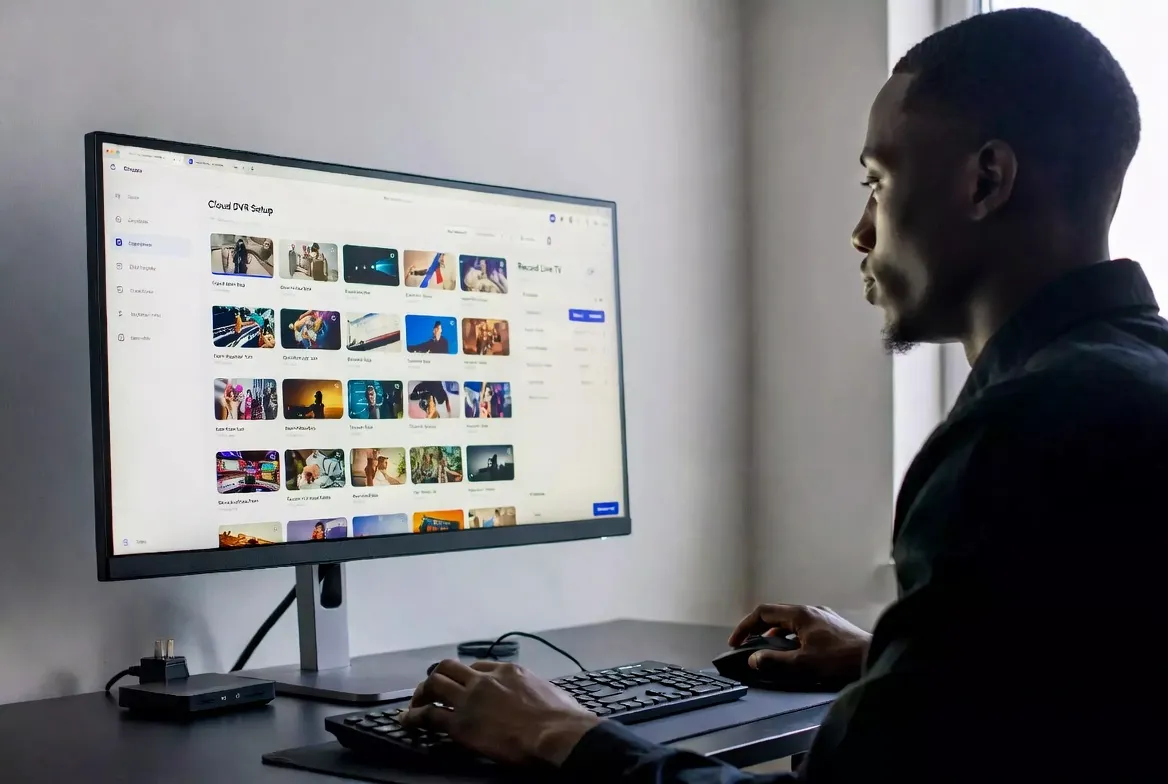
One of the biggest questions IPTV newcomers ask: "Can I record live TV?" The answer is yes — and in 2026, you have three powerful options: built-in catch-up replay, local device recording, and third-party cloud DVR. This guide covers all three methods step-by-step so you never miss a show, game, or movie again — all starting at just $11.88/month with StreamTV.
3 Ways to Record & Replay IPTV Content
Unlike cable DVR, IPTV gives you multiple flexible options for recording and replaying content. Here's an overview:
Method 1: Catch-Up Replay
Built into StreamTV. Go back 7 days on any channel — no recording needed. Easiest option.
Method 2: Local Recording
Record directly to your device storage using apps like TiviMate or OTT Navigator. Free.
Method 3: Cloud DVR Tools
Use third-party cloud DVR services to record and store IPTV streams online.
Method 1: Catch-Up Replay (The Easiest Way)
StreamTV's built-in 7-day catch-up is the simplest "recording" method — because you don't have to record anything at all. Every supported channel automatically keeps the last 7 days of programming available for instant replay.
✅ Why Catch-Up Is Usually All You Need
- No setup required — works automatically on all supported channels
- No storage needed — nothing is saved on your device
- Works on every device — phone, tablet, Fire Stick, Smart TV, PC
- Full playback controls — pause, rewind, fast-forward, seek
- Included free — no extra cost, part of every StreamTV plan at $11.88/month
How to Use Catch-Up
Open the EPG (TV Guide)
In your IPTV app, press the Guide/EPG button while watching any channel.
Navigate to past programs
Scroll left (backward in time) to see programs from the last 7 days.
Select and play
Tap or click any past program — it starts playing instantly from the beginning.
⏪ Try 7-Day Catch-Up Replay — Free for 24 Hours
No DVR box. No recordings. Just go back and watch. Test it on 18,000+ channels right now.
No credit card required • Instant activation via WhatsApp
Method 2: Local Recording (Save to Your Device)
Want to save a show permanently? Several IPTV apps let you record live streams directly to your device's storage — just like a traditional DVR, but without the hardware.
📺 TiviMate (Fire Stick / Android TV) — Best Local Recording
TiviMate Premium ($11.88/year) includes a powerful built-in recording feature:
- 1. Open TiviMate and navigate to the channel you want to record
- 2. Press and hold OK/Select on the channel
- 3. Select "Record" from the menu
- 4. Choose duration: current program, custom time, or until stopped
- 5. Recording saves to internal storage or USB drive
- 6. Access recordings from the "Recordings" tab in the main menu
💡 Tip: Connect a USB drive for more storage. A 64GB drive holds ~30 hours of HD recordings.
📱 OTT Navigator (Android) — Alternative Option
- 1. Open OTT Navigator → Go to a live channel
- 2. Tap the record button (⏺) in the player controls
- 3. Set the recording duration or record indefinitely
- 4. Recordings save to your phone/tablet storage
- 5. Access via the "Recordings" section
💻 VLC (PC / Mac) — Free & Open Source
- 1. Open VLC → Media → Open Network Stream → Paste the channel URL
- 2. Once playing, go to Playback → Record (or press Shift+R)
- 3. VLC records the stream to your default Videos folder
- 4. Press Shift+R again to stop recording
- 5. File saves as .ts or .mp4 — playable in any media player
💡 VLC is 100% free and works on Windows, Mac, and Linux.
Method 3: Cloud DVR Tools (Record to the Cloud)
For users who want to record IPTV to cloud storage and access recordings from any device, there are third-party tools available:
Xtream UI Cloud Recording
Depends on providerSome IPTV providers offer server-side recording through Xtream Codes. Check if your plan includes this feature — it lets you schedule recordings that save on the provider's servers.
Plex + IPTV Integration
Requires home server/NASSet up Plex DVR with an IPTV source using plugins like xTeVe. Plex records to your home server or NAS, accessible from any device with the Plex app.
TVHeadend
Free, requires Linux setupOpen-source TV streaming server that supports IPTV recording. Runs on a Raspberry Pi or Linux server. Schedule recordings, manage storage, and stream to any device.
Catch-Up vs. Local Recording vs. Cloud DVR: Which Is Best?
| Feature | Catch-Up Replay | Local Recording | Cloud DVR |
|---|---|---|---|
| Setup Difficulty | None | Easy | Advanced |
| Storage Needed | None | Device/USB | Server/Cloud |
| Replay Window | 7 days | Unlimited | Unlimited |
| Schedule Required | No | Yes | Yes |
| Extra Cost | Free (included) | Free–$11.88 | Varies |
| Works On | All devices | Android/PC | Server-based |
| Best For | Most users | Archiving | Power users |
💡 Our recommendation: Start with catch-up replay — it covers 95% of use cases without any setup. Only explore local/cloud recording if you need to save content permanently beyond 7 days.
🎬 Record & Replay 18,000+ Channels — $11.88/Month
7-day catch-up included free. Local recording supported. Try everything free for 24 hours.
No credit card • No DVR hardware • Instant activation
Storage Guide for IPTV Recordings
If you choose local recording, here's how much storage you'll need:
32GB USB: ~10 hours HD | 64GB USB: ~21 hours HD | 128GB USB: ~42 hours HD
Pro Tips for IPTV Recording
Start with catch-up
Don't overcomplicate things. StreamTV's 7-day catch-up eliminates the need for recording in most situations. Only set up local recording for content you want to keep permanently.
Use an external USB drive
Fire Stick and Android TV boxes have limited internal storage. A $15 USB drive gives you hours of recording capacity and is easy to swap out.
Schedule recurring recordings
TiviMate lets you set recurring recordings for weekly shows — just like a traditional DVR. Set it once and it records every episode automatically.
Record in HD, not 4K
4K recordings use 7 GB/hour. HD (1080p) uses only 3 GB/hour and still looks excellent on most screens. Save storage without sacrificing much quality.
Use catch-up for sports replays
Don't waste storage recording live games. Use the 7-day catch-up to replay any match — pause, rewind, and fast-forward without filling up your drive.
Frequently Asked Questions
Can I record IPTV channels with StreamTV?
Yes — you have three options: 7-day catch-up replay (built-in, no setup), local recording via apps like TiviMate, or cloud DVR tools for advanced users.
Do I need a DVR box for IPTV?
No! IPTV replaces the need for physical DVR hardware. Catch-up replay works automatically, and local recording uses apps on your existing devices.
Is the 7-day catch-up feature included free?
Yes — catch-up replay is included in every StreamTV plan at $11.88/month. No extra charges, no upgrades needed.
Can I record on a Fire Stick?
Yes — TiviMate Premium on Fire Stick supports local recording to internal storage or a USB OTG drive. The premium version costs just $11.88/year.
How many shows can I record at once?
With local recording, you can typically record one channel while watching another. Catch-up replay has no limit — everything is already available for replay.
Can I keep recordings forever?
Local recordings are saved to your device/USB and stay until you delete them. Catch-up replay content is available for 7 days from the original air date.